Customer Meeting Booking in Public API
This guide explains how to book a meeting through the Public API, allowing customers to search for available time slots, reserve a slot, and create a meeting.
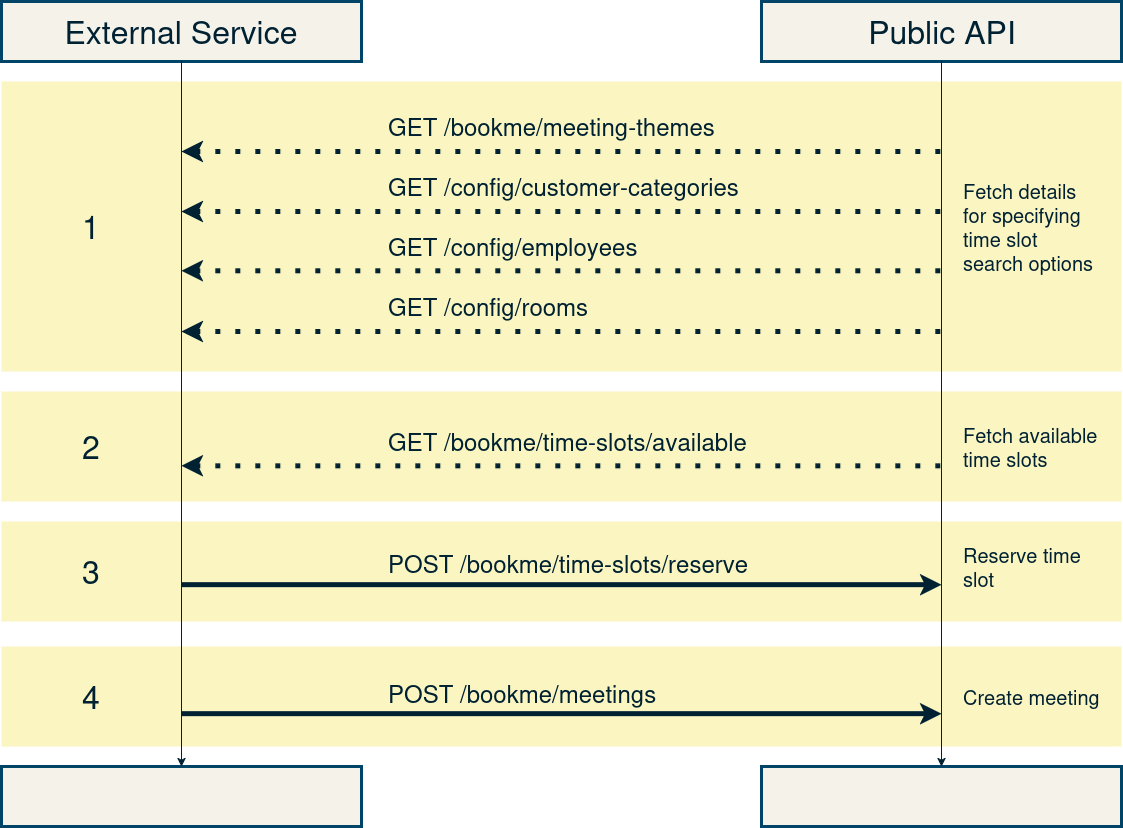
Link to Postman-collection: &money Public API
1. Fetching Configuration Details
Before customers can book a meeting, you need to retrieve relevant configuration details:
Fetch Meeting Themes
Parameters:
customerCategoryId- Optional filter for customer category IDisCustomer- Flag indicating if the request is for a customer (required)
Response: Returns a list of available meeting topics.
Fetch Customer Types
Response: Returns available customer types.
Fetch Employees
Response: Returns a list of employees who can be booked.
Fetch Rooms
Response: Returns available rooms for meetings.
2. Fetching Available Time Slots
Once the customer has selected a theme, category, employee, and room, retrieve the available time slots:
Key Query Parameters:
explicitEmployeeIds- Optional filter for specific employeesstartDate- Optional filter for specific start date/timetheme- Optional filter for specific meeting themecustomerCategoryId- Optional filter by customer categorymeetingTypes- Optional filter for meeting types (physical, online, etc.)requireRoom- Optional filter to require a roomspecificRooms- Optional filter for specific room IDsmeetingDuration- Optional filter for meeting durationrequireEmployeeParticipation- Whether employee participation is required (required)
Response: Returns a list of available time slots based on the search filters.
3. Reserving a Time Slot
After choosing an available time slot, the customer must reserve it:
Request Body:
Response: Confirms the reservation of the selected time slot.
4. Creating a Meeting
Once the time slot is reserved, finalize the meeting by creating a meeting record:
Request Body:
Response: Returns confirmation of the created meeting.
Downloading an ICS File
To download the meeting details in iCal format, use the following endpoint:
Request Body: All properties are optional in the request body. If a property is not provided, the default value will be used.
Response: Returns the meeting details in iCal format.
Security and Authentication
All API requests require OAuth2 authentication
Include a valid Bearer token in the
Authorizationheader
Error Handling
Status Code | Description |
|---|---|
401 Unauthorized | Missing or invalid authentication token |
403 Forbidden | Access is forbidden |
404 Not Found | Invalid resource (theme, employee, room, etc.) |
409 Conflict | Resource conflict (e.g., time slot already booked) |
500 Internal Server Error | Server-side error |