Master template creation
The prerequisites required for Present to work.
Make sure that:
The newest Present Package is installed in your org
Valid licenses are assigned to relevant users
How to set up Master Templates in Present
Create a PowerPoint presentation (a .pptx file) with relevant slides
Divide your slides into different categories
Before you start, it is recommended that you divide your slides into different sections
Master slides e.g. Frontpage, agenda, ending slides.
Addon-slides e.g. based on the season
Pricing slides
Etc.
This will help you structure your templates
Each slide in the PowerPoint can be given a name in the notes section of the slide with the following syntax
[slide:<slide-name>]<slide-name>must be lowercase and without spaces.
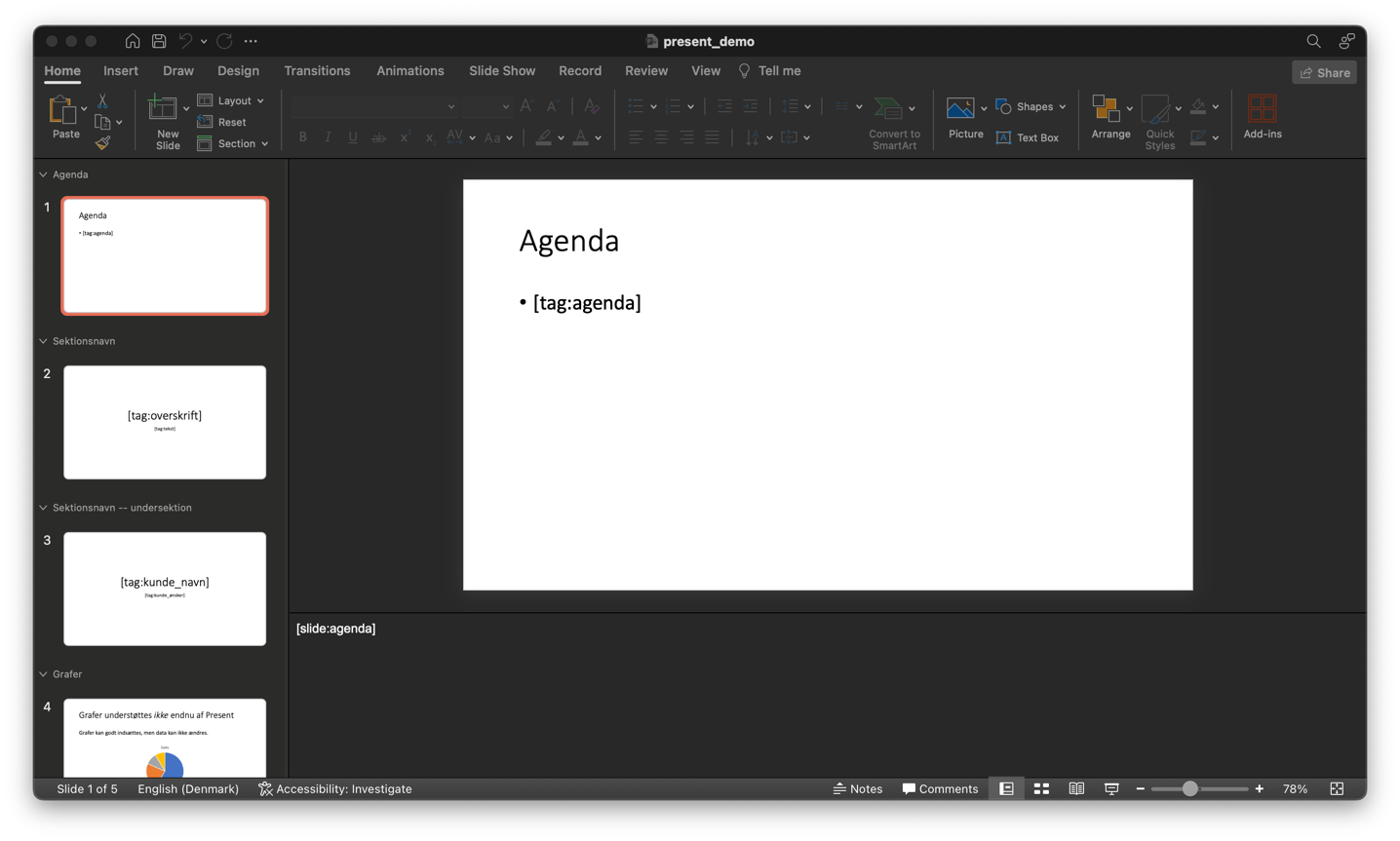
Set up sections for the Master Slides e.g. introduction, about the customer, about the bank, investing, etc.
This can be done using the sections in PowerPoint. As an example see below:
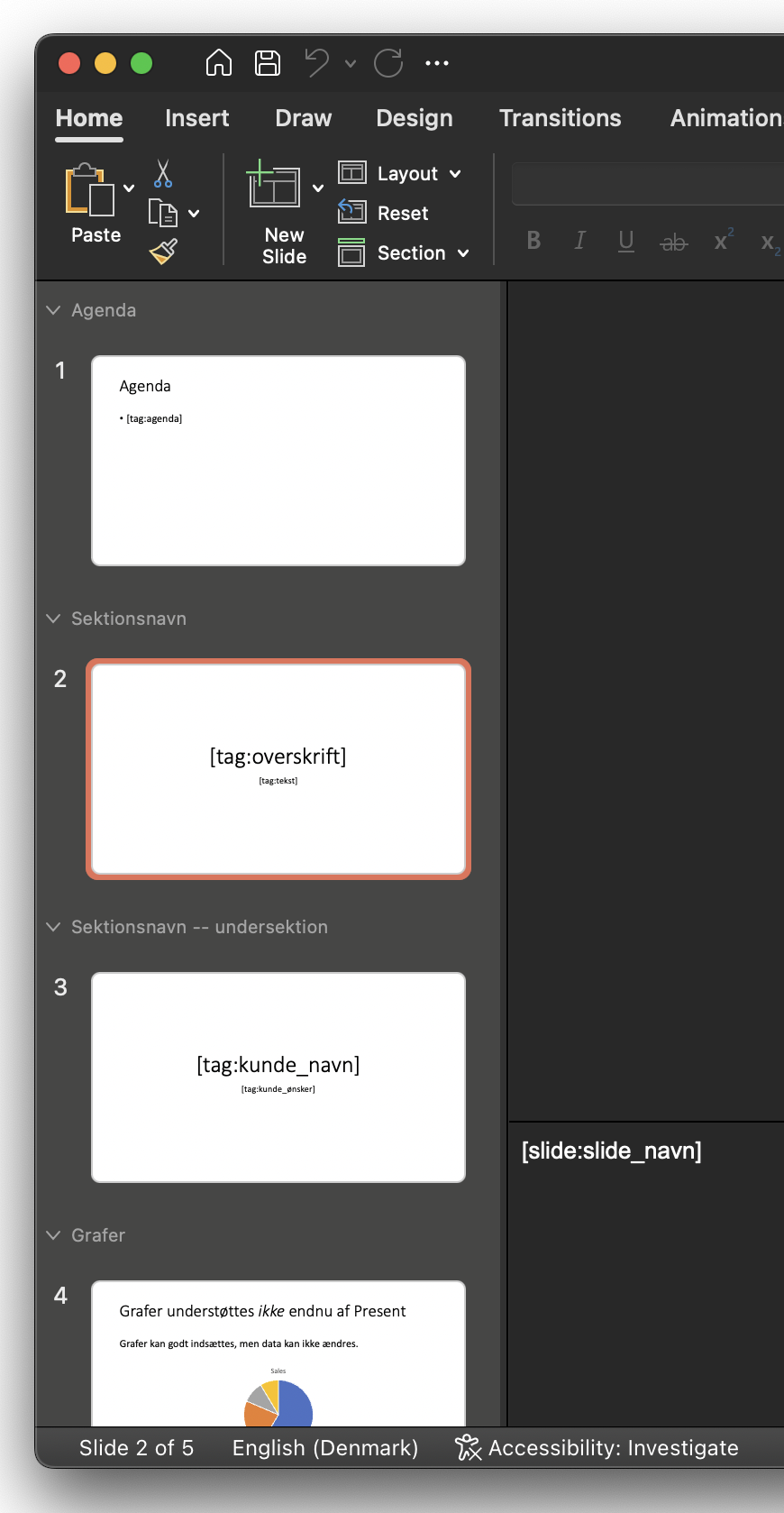
Here the agenda slide is in the section 'Agenda'.
To make subsections you can use the following syntax:
<sectionname> -- <subsectionname>. As an example in the image above, slide number 3 is in the section 'Sektionsnavn' and has a subsection called 'undersektion'.Insert 'tags' where you want Salesforce data to automatically insert data in the presentation.
To insert tags use the following syntax:
[tag:<name-of-tag>].<name-of-tag>must be lowercase and without spaces.
Insert image tags to replace images in the template.
To replace images use the following tag in the image name:
[image:<image_name>].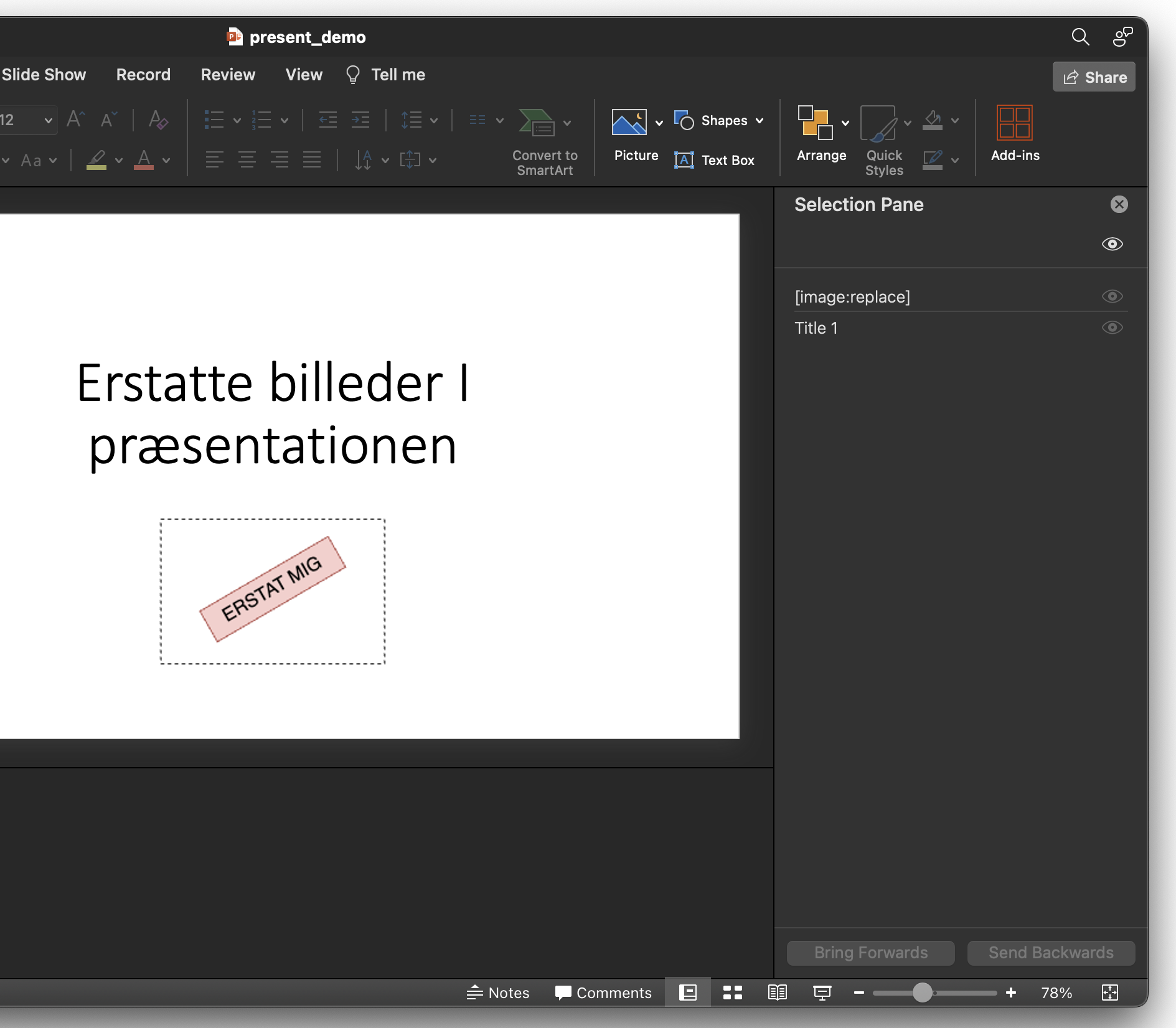
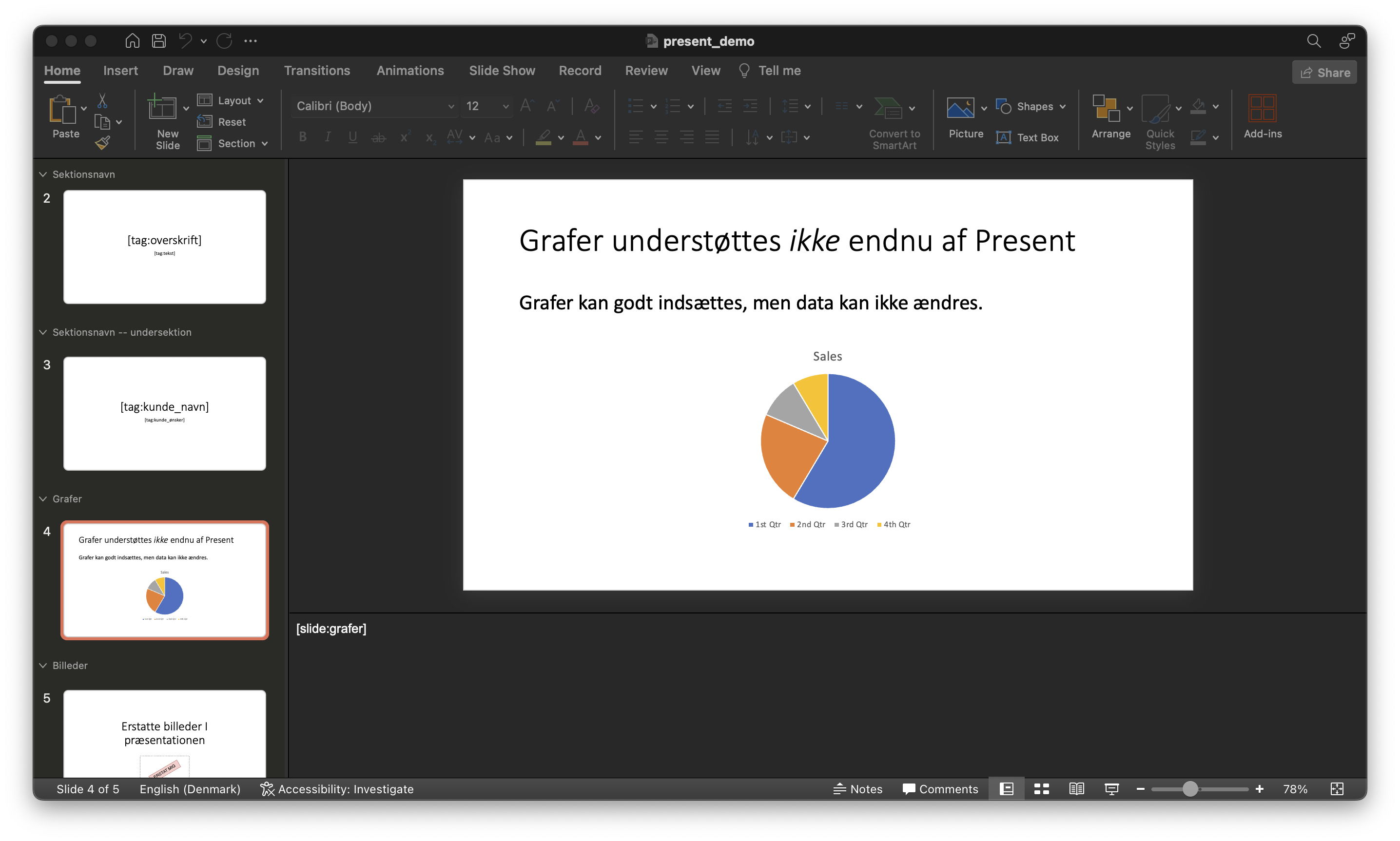
Charts are not (yet) supported in Present